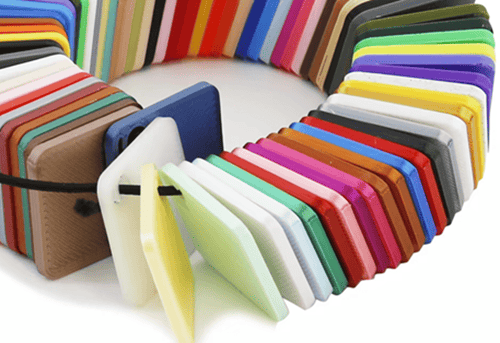
When you use a laser engraver on a new material for the first time, you might not know exactly which settings to use—speed, power, frequency, or passes. That’s why a material test engraving is so important. It helps you find the best engraving result before you start your actual project.
In this guide, I’ll show you how to run a material test using ComMarker Studio software and your laser engraver. This is exactly how I do it with my Omni X, and it has saved me from wasting materials more times than I can count.
✅ Step 1: Set Up the Laser Engraver
Before running the material test, make sure your laser engraver is ready to go.
📌 Setup Checklist:
-
Install and open ComMarker Studio.
-
Connect the laser engraver to your computer.
-
Remove the lens cap.
-
Turn on the machine.
-
Place your test material on the work platform and secure it firmly.
📍 Focus the Laser Correctly:
-
Make sure the red alignment dot lands exactly on the material surface.
-
For transparent materials (glass, acrylic), place a piece of paper on top — this helps the auto-focus detect the surface.
-
Click the Focus button.
-
If focus is not correct, tap the Up or Down button, then click Focus again.
🎯 Step 2: Create a Test Shape in ComMarker Studio
You need a basic shape to test engraving settings.
-
Click Draw and create a small square or circle.
-
Go to Fill — keep it unchecked for engraving test.
-
Confirm that the lens selection matches the one installed on your machine.
⚙ Step 3: Use the Material Test Array Tool
This is where the magic happens. Instead of guessing settings, the software will create a grid of different parameters.
How to Do It:
-
Click Array → Material Test Array.
-
A pop-up window will appear.
-
Set:
-
Speed range (e.g. 500–3000 mm/s)
-
Power range (e.g. 10%–90%)
-
Number of rows and columns (each cell is a test sample)
-
-
Click Confirm. The test grid is created automatically.
👀 Step 4: Preview and Position Your Test Area
Before engraving, always check if the design fits your material.
-
Click Preview.
-
The laser head will outline the test area.
-
If the test grid is too big:
-
Select all shapes.
-
Resize them to fit.
-
-
Once correct, stop the preview and close the safety door.
🔥 Step 5: Start Engraving
-
Click Start to begin the test.
-
Wait for the laser engraver to finish the full test grid.
-
When done, open the safety door and take out the material.
📊 Step 6: Choose the Best Setting
Now look at your test results.
What you should check:
| What to Look For | Ideal Result |
|---|---|
| Line clarity | Sharp and clean |
| Depth | Deep enough without burning |
| No melting or cracks | Especially on acrylic, glass, or wood |
| Consistent texture | No gaps or rough patches |
Whichever square looks best — note down its speed, power, and frequency. That’s your perfect setting for this material.
✅ Why Material Test Engraving Matters
-
Saves material (and money!)
-
Prevents burns, cracks, or weak engravings
-
Helps you work confidently with wood, metal, acrylic, glass, leather, stone, and more
-
Essential for UV laser engravers, where precision really matters
💡 Pro Tips for Better Results
| Tip | Why It Helps |
|---|---|
| Always focus before testing | Out-of-focus laser = blurry or weak engravings |
| Use masking tape for glossy materials | Prevents reflections and burn marks |
| Label your test grid | Write speed/power values next to each square |
| Keep a material settings notebook | Saves time for future projects |
Final Thoughts
A material test engraving might feel like an extra step—but trust me, it’s one of the best habits to have when using a laser engraver. It helps you get perfect results, reduces mistakes, and makes your creative projects look professional from day one.