When ComMarker launched the Omni X and Omni XE UV laser engravers, many users quickly noticed something different: the machines felt ready to use almost immediately. For others—especially experienced laser users—LightBurn remained the preferred software.
So which one should you use? And why do some users experience calibration or rotary engraving issues in LightBurn on early Omni X/XE units?
This guide explains the real differences—not in software capability, but in workflow design, calibration handling, and hardware compatibility.
ComMarker Studio: Built for Plug-and-Play UV Laser Engraving
ComMarker Studio was designed specifically for Omni X and Omni XE users. Instead of asking users to configure everything manually, ComMarker took a different approach.
Preloaded Parameters and Calibration Data
For Omni X/XE machines:
-
Lens parameters
-
Galvo calibration data
-
Working field configuration
are stored directly inside the machine motherboard.
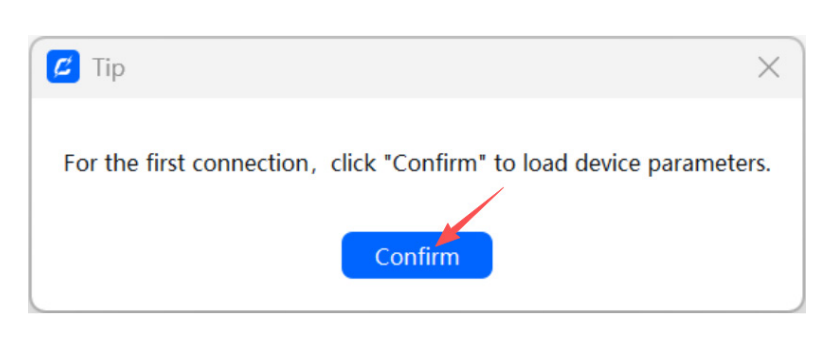
When you launch ComMarker Studio for the first time, the software simply loads those values from the motherboard. There is no need to upload configuration files or perform manual calibration.
This makes ComMarker Studio ideal for:
-
First-time UV laser users
-
Small business owners who want fast setup
-
Users focused on production rather than tuning
In most cases, users can go from unboxing to engraving without touching calibration tools.
Features Available Only in ComMarker Studio
Beyond simplified setup, ComMarker Studio also enables several advanced functions that are not currently supported in LightBurn when used with Omni X and Omni XE UV laser engravers.
3D Relief Engraving
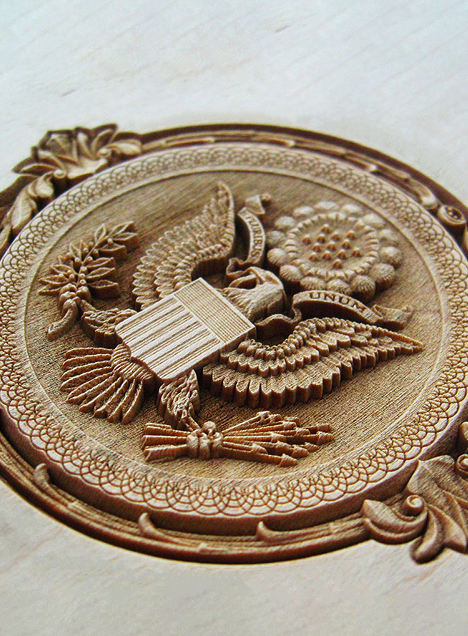
ComMarker Studio includes native support for 3D relief engraving, allowing users to create depth-controlled results based on grayscale data.
This is commonly used for:
-
Coins and medallions
-
Textured logos
-
Raised or recessed wooden designs
The depth calculation and layer handling required for this process are handled internally by ComMarker Studio and are not available in LightBurn for UV galvo systems.
3D Glass Engraving
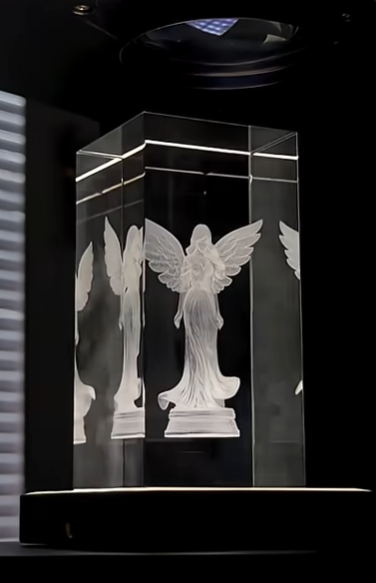
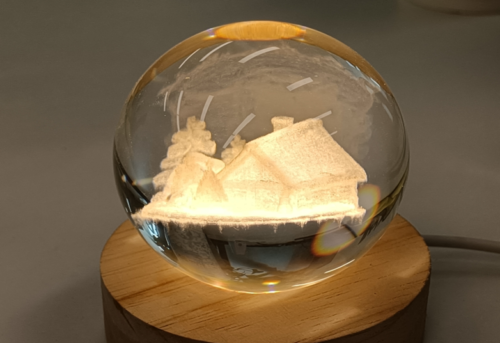
ComMarker Studio also supports 3D internal glass engraving, where the laser marks points inside transparent materials rather than on the surface.
This process requires:
-
Multi-layer depth control
-
Precise Z-axis coordination
-
Specialized internal point processing
These functions are built directly into ComMarker Studio’s workflow. LightBurn does not provide a comparable 3D glass engraving mode for Omni X/XE.
Slide Extension Operation
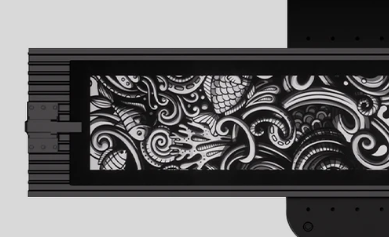
For users working with extended engraving areas, ComMarker Studio supports Slide Extension mode, allowing the engraving area to exceed a single galvo field.
This includes:
-
Automatic segmentation of engraving areas
-
Accurate alignment between fields
-
Seamless transitions during multi-step engraving
LightBurn does not support Slide Extension operation for Omni X/XE hardware.
Why This Matters
These differences are not about software quality, but about feature scope.
LightBurn focuses on universal compatibility and manual control.
ComMarker Studio focuses on hardware-specific capabilities that require deep integration with Omni X/XE systems.
For users who rely on 3D relief, internal glass engraving, or slide-based expansion, ComMarker Studio is currently the only supported option.
LightBurn: Powerful, Flexible, and Industry-Standard
LightBurn remains one of the most powerful laser software platforms on the market, especially for users who work across multiple laser brands.
Importantly, LightBurn does support configuration files and calibration files. When those files are available, LightBurn can be just as streamlined as any brand-specific software.
However, there is an important distinction for Omni X/XE users:
At this time, ComMarker does not provide pre-generated LightBurn configuration or calibration files for Omni X/XE.
Because of that, users who choose LightBurn must complete setup manually.
Rotary Engraving in LightBurn: What Changed?
Some early Omni X/XE users reported issues when using rotary attachments in LightBurn, such as:
-
Abnormal rotary movement
-
Irregular shaking or stuttering
-
Inconsistent rotation during engraving
The Root Cause (Not a Software Bug)
LightBurn does not include a dedicated rotary drive control parameter inside its device settings. Because of this, early Omni X/XE mainboards did not fully align with LightBurn’s rotary handling logic.
This affected only early production batches of Omni X/XE and only when used with LightBurn for rotary engraving.
The Hardware Upgrade That Solved It
ComMarker addressed this at the hardware level.
New Mainboard with Rotary Drive Switch
Newer Omni X/XE machines now ship with an updated mainboard featuring a dedicated rotary drive toggle switch.
With this updated mainboard:
-
Rotary engraving in LightBurn becomes stable and smooth
-
Abnormal motion and stuttering are eliminated
-
Compatibility with LightBurn rotary workflows is fully restored
For early users, replacing the mainboard with the updated version completely resolves the issue.
This solution does not require software workarounds, custom scripts, or unofficial settings.
Which Software Should You Choose?
There’s no single “right” answer—only the right workflow for your needs.
Choose ComMarker Studio if you want:
-
Zero calibration at first use
-
Fast setup and simple operation
-
Guaranteed compatibility with Omni X/XE features
Choose LightBurn if you want:
-
Deep control and customization
-
A unified workflow across multiple laser brands
-
Advanced control over calibration and rotary setups
Final Thoughts
LightBurn is not limited.
ComMarker Studio is not restrictive.
They simply serve different user expectations.
By preloading calibration data and refining hardware design over time, ComMarker has made Omni X/XE easier to use—while still allowing advanced users to take full control in LightBurn when they choose.